 TurtleGit for Mac
Getting started with TurtleGit for Mac
TurtleGit brings Git commands, file status badges, history and comparison tools to macOS. This chapter covers opening a repository, working from Finder, committing changes and reviewing history in native Mac windows.
The macOS port is authored by Jochen Kühner, with upstream attribution in AUTHORS.md. It requires macOS 13 or later. Mac App Store distribution is planned; no store purchase is available yet. Build and signing instructions are in the project README and distribution guide.
Set up Git and authentication
Open First Start Wizard… from the application menu, or re-run it from General settings. Choose the interface language, Git engine, identity and authentication settings in order. Git and identity choices save when their steps succeed; cancelling a later step keeps those earlier choices.
On Authentication, Automatic OpenSSH uses the normal SSH configuration. Choose Custom OpenSSH to enter or browse for another OpenSSH executable. Check now reads its version without saving the choice; Cancel check stops a pending check. Finish saves a changed SSH choice before applying the HTTP credential-helper choice. If that later step fails, the accepted SSH choice remains saved so you can correct the helper and retry. Don't store for HTTP credentials does not discard the SSH choice.
The sandboxed distribution build includes Git and OpenSSH, so a separate Git installation is not required. Custom executable selection is disabled in that build. Builds made for development can use a separately configured Git or SSH client. See SSH setup for authentication details and platform limitations.
Open, clone or create
Use Open Repository… (Command-O) to select an existing repository folder and open the main workspace. Use Clone… (Command-Shift-C) for a remote or local source, or Create Repository… (Command-Shift-R) for a new repository. Clone has its own options and progress windows; inspect the result before continuing. A failed Clone can leave partial files: retry does not delete them for you. See Clone parity for supported options, cancellation and remaining authentication work.
Finder commands, Settings, About and standalone comparison or patch documents open their own windows. They do not need to open a repository workspace first. Closing a dialog leaves any existing workspace available.
The source button remembers Browse… or Open. Use its arrow to change the action. Open reveals a local source in Finder (or its closest existing parent) or opens a remote URL using its registered application. It does not start a clone. Local sources may require folder permission. Cancel stops a pending source request.
After successful bare creation or cloning, TurtleGit sets its branded folder icon when no existing custom icon is present. An icon failure is reported separately: the Git repository remains created and you do not need to repeat Init or Clone.
Opening a working repository enables the status, commit and history workflows. Bare repositories support history and remote operations but do not have a working tree to edit or commit. If saved folder access cannot be renewed, select the folder again through Open Repository.
Start from Finder
With the signed Finder extension enabled, select a folder and open TurtleGit in its context menu. Clone… opens the clone form with that destination; Create repository… opens the creation form. For a repository already on disk, choose Add to TurtleGit…. The app requests folder access when needed, validates the repository and saves it in Open Recent and Watched Repositories. Registration runs without opening a workspace and does not replace a repository already open there.
A successful Clone also registers its resulting repository using the destination permission you already granted. A registration failure is reported separately from the successful Git clone, so you can retry registration without cloning again. To continue badge updates after quitting, enable Settings → Icon Overlays → Watched Repositories → Refresh after TurtleGit quits. Registering or cloning a repository does not change that background preference.
If Finder Sync is disabled or macOS does not show its submenu, select the folder and use Services → Open in TurtleGit to open the repository or its folder chooser. Finder controls extension/menu placement. These commands do not grant access to other repositories or cause a scan of your Mac. See the registration workflow for scope and current verification limits.
Commit with checked files
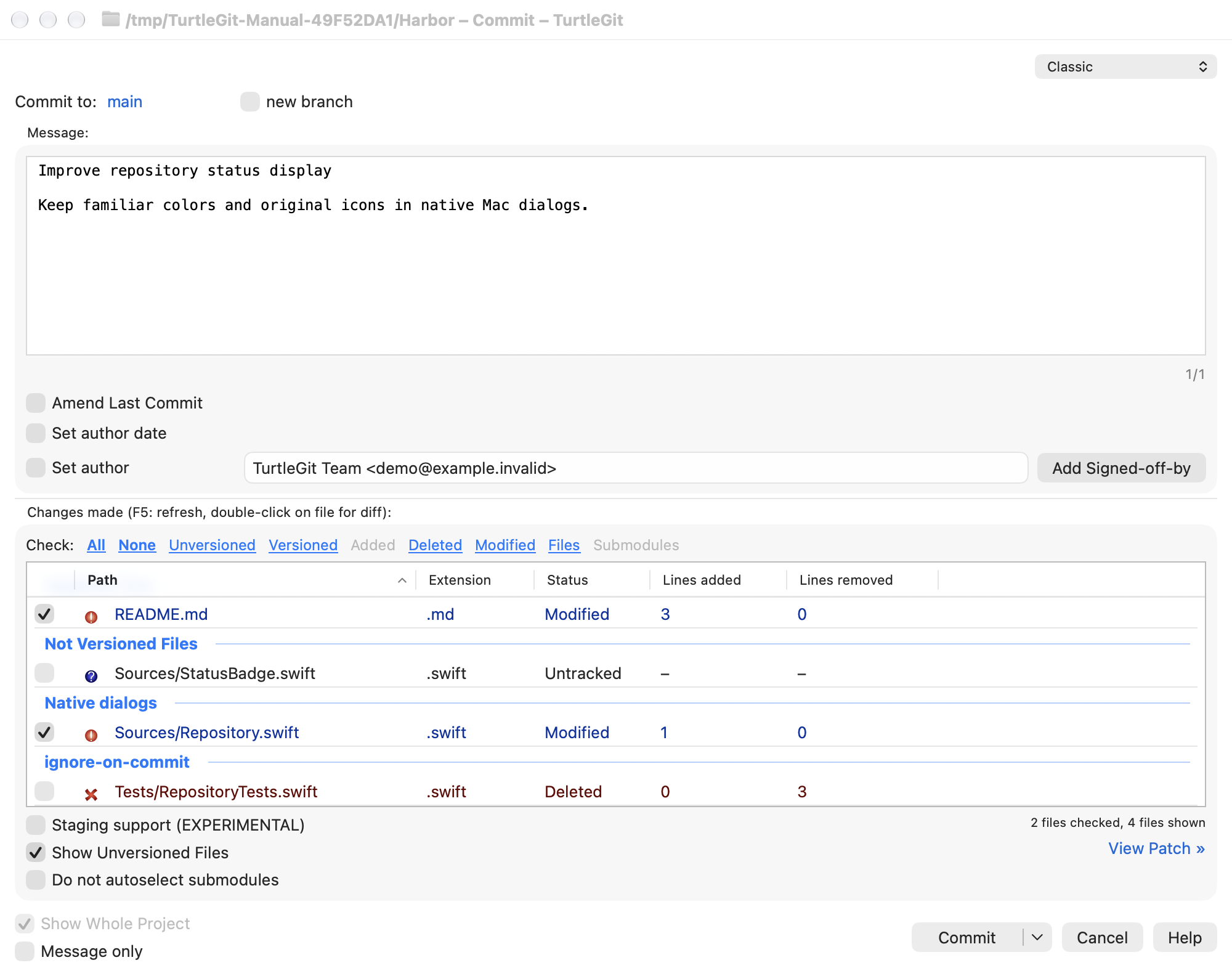
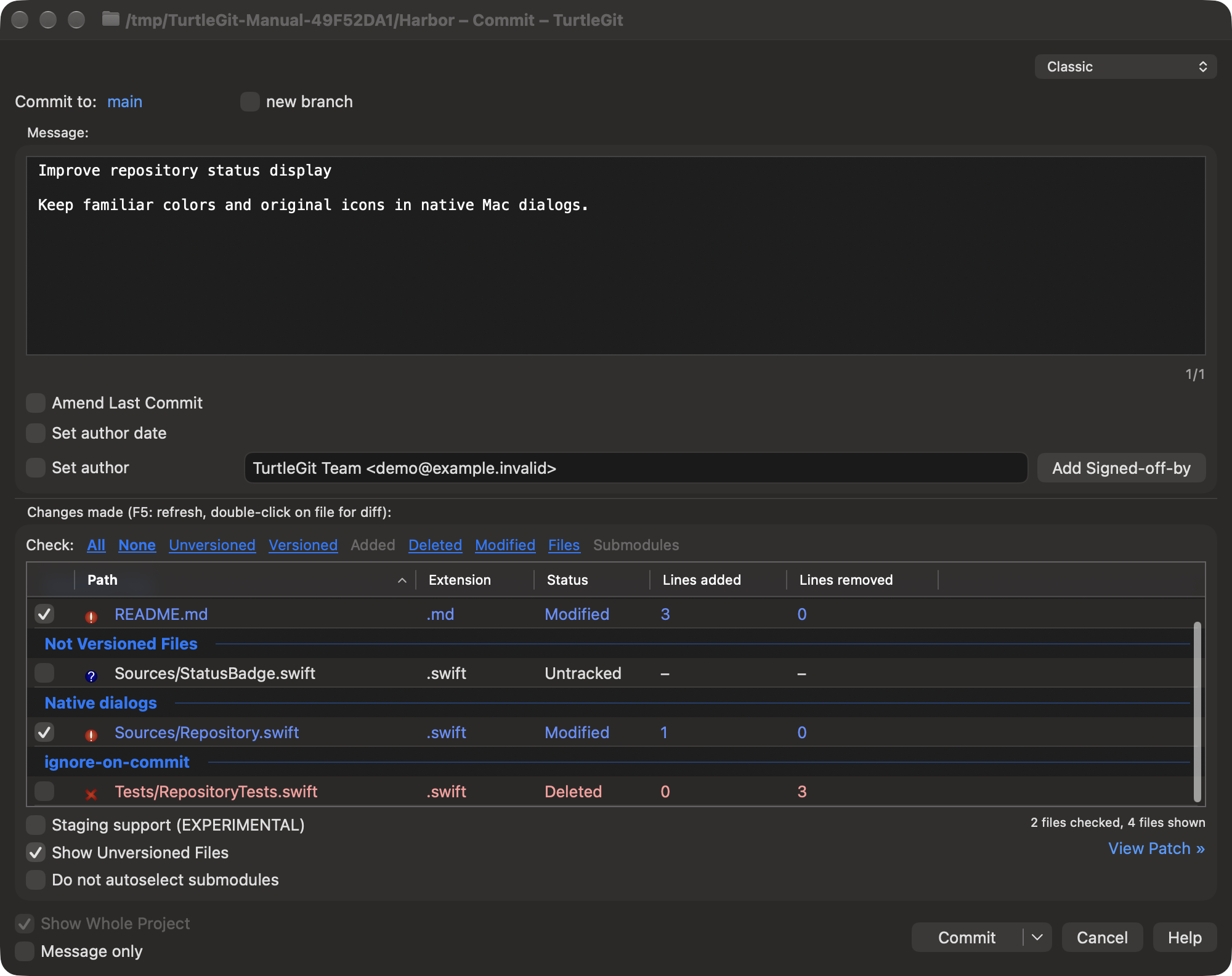
Open Commit for the current repository. The message sits above the changed file list. With Staging support (EXPERIMENTAL) off, check the files whose current whole-file contents you want to commit. Highlighting a row is separate from checking it. Category links such as All and None change the checked set. Unrelated staged changes are preserved outside the checked-file commit.
Show Unversioned Files includes files that Git does not yet track. Show Whole Project expands a scoped selection to the repository. Double-click a file to inspect its diff before committing. Do not autoselect submodules controls automatic submodule selection in checked-file mode; it is disabled in staging mode.
The dialog includes Amend Last Commit, Set author date, Set author and Message only. The commit choice offers Commit, ReCommit and Commit & Push. Options have eligibility rules; inspect the enabled controls and result before continuing. Commit parity records their source comparisons, verification and remaining work.
The Commit window in light appearance:
Choose Classic or Git Gui-style staging from the compact dropdown at the upper right. TurtleGit remembers your choice.
The same window in dark appearance:
Choose a commit window
The Commit window selector offers Classic and Git Gui-style staging. Classic remains the default. The choice is saved for subsequent Commit windows. The staging workspace shows unstaged files above staged files on the left, with an embedded patch and commit message on the right. Select a file in either list to review that side of the index. A partially staged file appears in both lists. Use Stage files or Unstage files for whole-file changes. Select changed lines in the patch, then use Stage lines or Stage chunks; the staged view offers the corresponding Unstage actions. The working file is preserved.
The alternative workspace commits the Git index, including staged changes outside the displayed scope. It shares the classic commit checks and progress workflow. It exposes the essential staging, message and Amend controls without duplicating Git Gui's menus. Switch back to Classic for author/date, branch and issue-provider controls. Changing the interface preserves the message and index; switching back restores the repository's classic staging preference.
Use the staging area
Enable Staging support (EXPERIMENTAL) to use the Git index. The same file list shows unstaged, staged and mixed checkbox states. Mixed means that a file has both staged contents and later working-tree changes. Stage/Unstage commands act on selected rows; enabling the mode alone does not change the index.
Staging mode commits all staged changes, including changes outside the currently displayed scope. Later unstaged edits remain in the working tree. Inspect the staged diff rather than relying on highlighted rows.
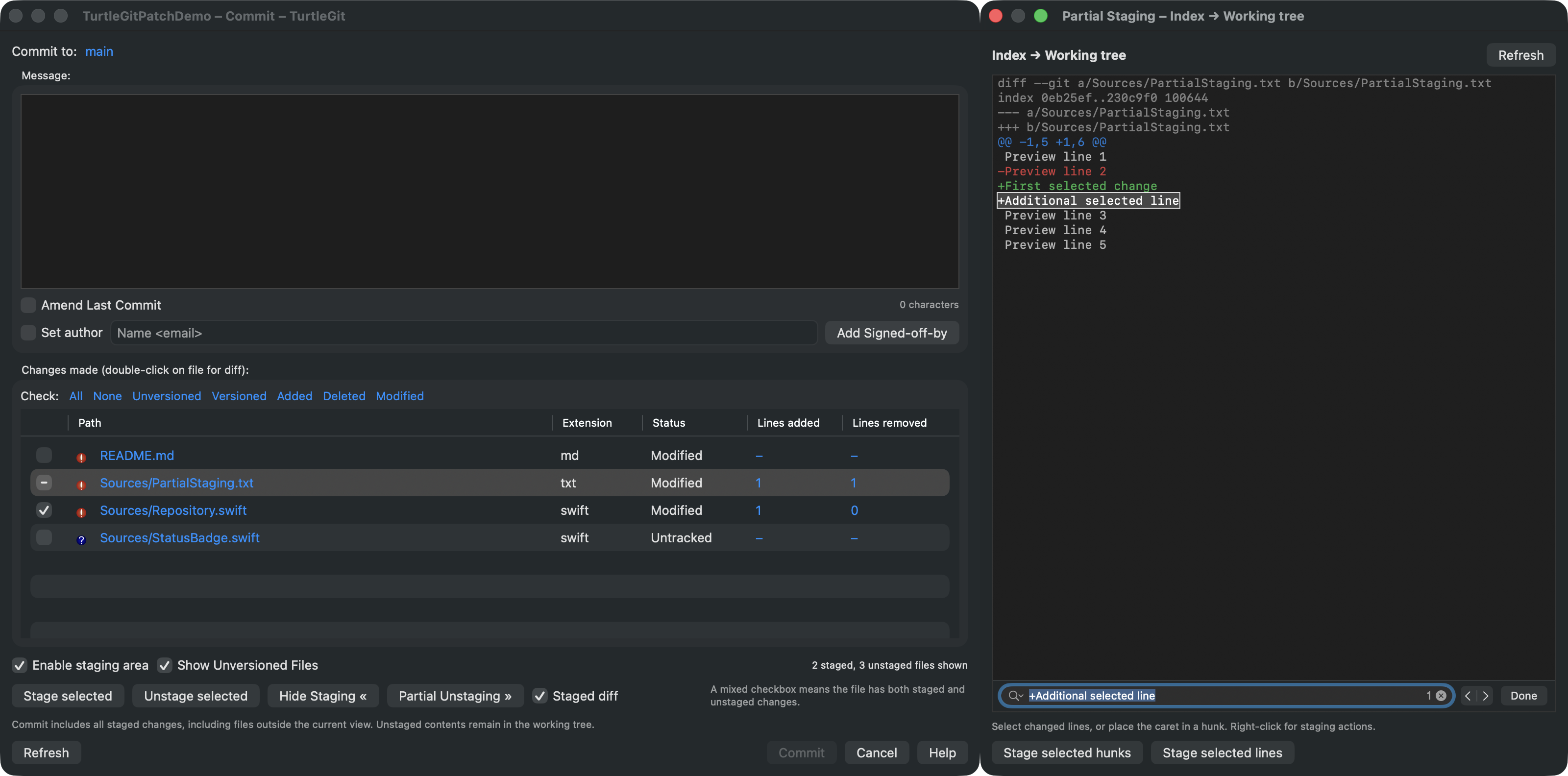
Partial staging opens an attached patch window to the right of Commit. Select lines or hunks to stage or unstage. It changes the index while preserving working-tree contents; a stale patch is rejected. Partial operations support modified, added and deleted regular UTF-8 text files. Selected untracked files can be previewed without first adding them to the index. Renames and executable-bit changes that include text hunks are applied together with the selected text, as shown by the patch header. Unstaging a rename hunk can move the index entry back to its original path while leaving working files unchanged. Pure metadata changes, copies, binary files and symlinks require whole-file staging; see the Commit audit for exact limits.
Inspect history and differences
Open Log to inspect the revision list with its graph before the list columns. Revision and file context menus provide history and comparison commands, with original upstream artwork. Colored unified patches and native file comparison windows are available through supported routes. See Log parity, Log graph and comparison parity for implemented commands and remaining differences.
The Log window shows the revision graph before the commit list, with the selected commit's message and changed paths below. This example selects a merge so you can inspect its differences against each parent.
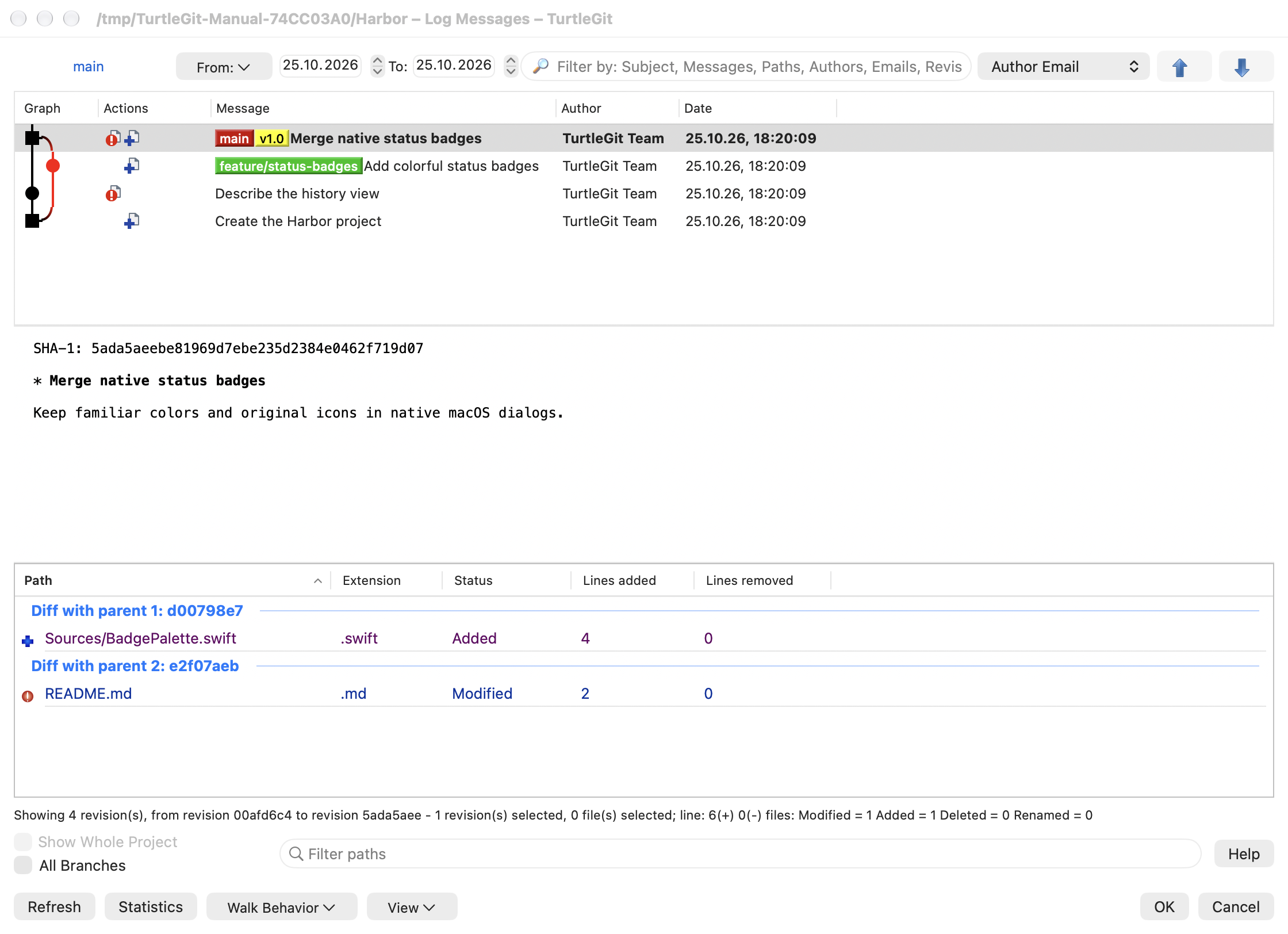
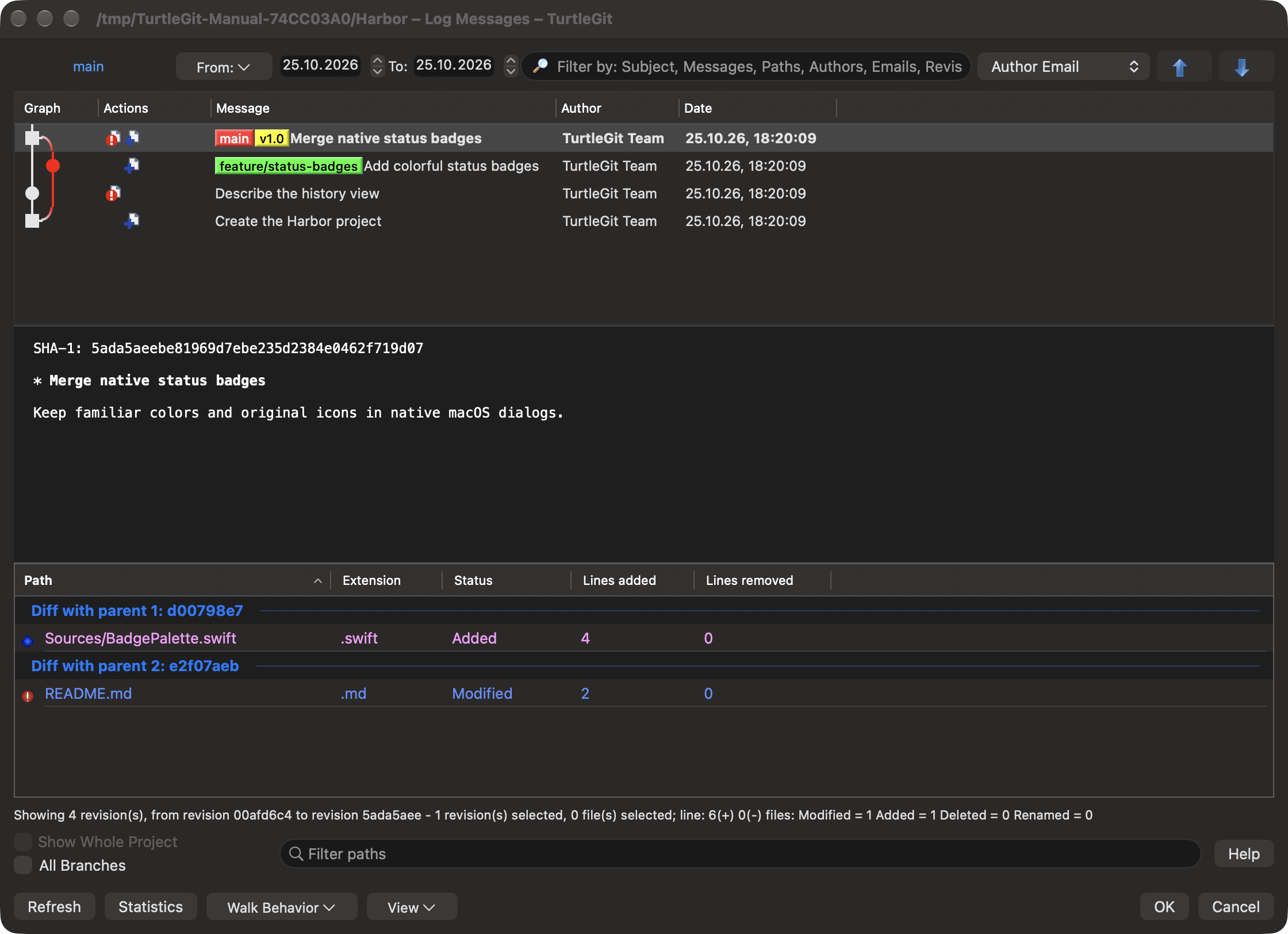
These screenshots show actual native windows using the offline Harbor sample repository. Available actions depend on the repository and selection. The partial-staging example shows the patch controls.
Return to the documentation index for other workflows.
Browse references
Choose Browse References in the TurtleGit menu or sidebar to inspect branches, tags and other reference namespaces. The standalone window supports multiple selection. Select two references and use their context menu to open a Log range; the last selected reference is the right endpoint. Double-click opens Log, or Repo-browser for a tree object. Copy ref names copies selected shortened names in displayed order (branch names, or tags/remotes with their namespace). Revision pickers in other dialogs remain single-selection.
Single-reference menus include Fetch, Merge, Switch, creation, rename, tracking and deletion where applicable. See reference browsing for command eligibility and platform differences.
To delete several references, select branches, tags or remote branches from one namespace and choose Delete N… in the context menu. Review the confirmation: remote branches are removed on the remote, and branch batches do not check whether every branch is merged. A failed batch can leave earlier deletions completed.
Select two references to use Compare selected refs for their changed-file list or Show changes as unified diff for a patch. Comparisons follow the displayed list order; Log ranges put the last-selected reference on the right. Unified Diff uses the displayed object IDs even if a branch moves afterward. Hold Shift to reverse the configured built-in/external unified viewer choice.
Right-click a branch or tag folder in Browse References to create a branch or tag from HEAD. Delete all tags applies to the tag rows currently displayed in that folder and filter. Tags outside the displayed list remain intact.
Use Delete remote tags on "remote"… in a tag folder to open the remote tag list. Select tags, click Delete and confirm; Abort is the default. The dialog refreshes and stays open after deletion. Local tags remain intact. Remote folders also offer Fetch and Delete remote tags for their configured remote.
In Git Synchronization, click Manage beside Remote URL to edit remotes. Use Add New/Save to add a name and URL, or select an existing remote and apply its URL, Push URL, tag, prune or Push Default changes. Closing Remote settings refreshes Synchronization's remote list and outgoing results. Unapplied edits are discarded when you cancel.
In Synchronization, use … beside Local Branch to choose a local branch and load its tracking destination. Use … beside Remote Branch to choose a stored remote-tracking reference; its remote and branch populate both fields. These choices prepare Sync without checking out a branch or changing Git configuration. Cancel leaves your current fields unchanged.
Inspect commits in Synchronization
In Git Synchronization, Log shows Action/Path reference results for an explicitly enabled libgit2 Fetch. Select a completed Update ref row and choose Show Log to inspect its captured old/new revisions. Partial results remain available after failure or cancellation. The default CLI Fetch keeps its text log. See Fetch result details.
With optional libgit2 Fetch, a selected branch spec is appended to the named remote’s fetch configuration. The current fetch uses the configuration loaded before that addition; later fetches see it. Repeated selected requests append duplicate entries. CLI Fetch retains its existing behavior. See configuration lifecycle details.
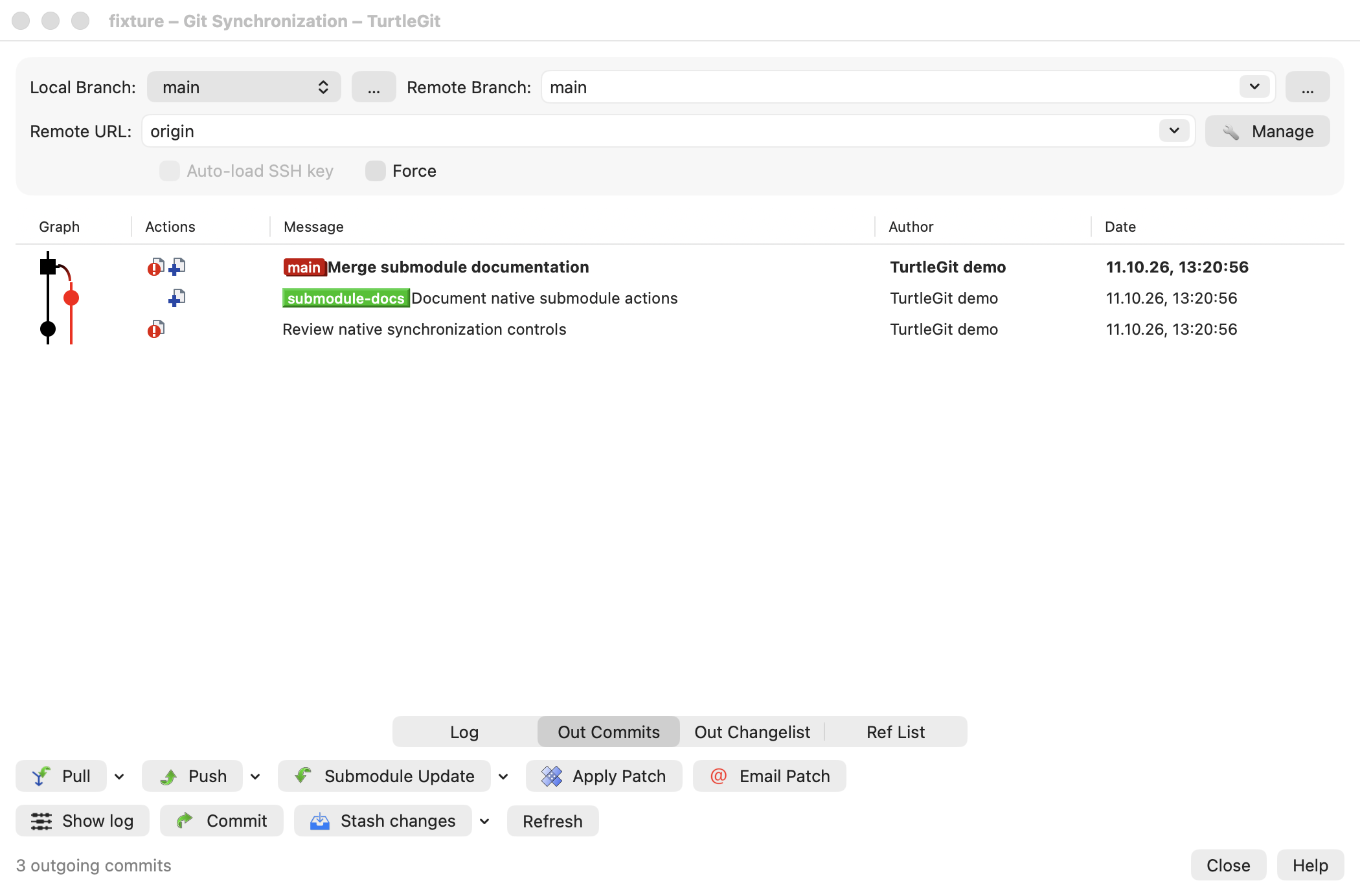
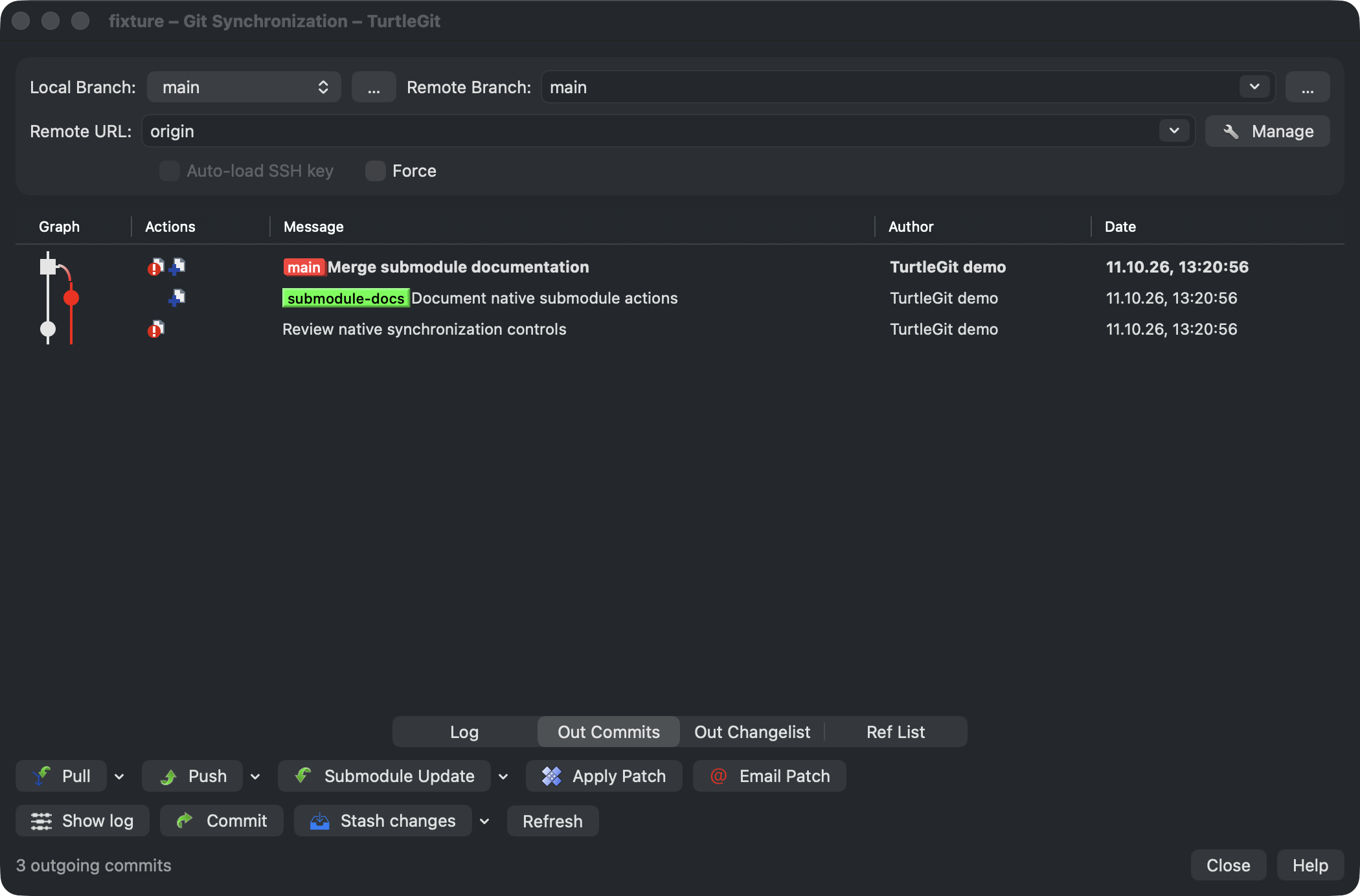
In Git Synchronization, open Out Commits to inspect the outgoing history. In Commits appears when incoming history is available. Each list has a compact revision graph and a context menu for the selected commits.
For one commit, Compare with working tree opens its changed-file comparison. Compare with previous revision compares it with its parent; merge commits offer a parent submenu. Root commits have no previous revision. Show changes as unified diff opens the patch, and merges provide additional modes under Unified diff with. Browse repository opens the files at that revision.
Select two commit rows to open Compare revisions, a unified diff, or one of three Show log of ranges. The menu labels identify the endpoints:
| Range | Commits shown |
|---|---|
A..B |
Commits reachable from B that are not reachable from A |
B..A |
Commits reachable from A that are not reachable from B |
A...B |
Commits reachable from either endpoint, excluding their shared history |
A range can be empty. Menu captions abbreviate the hashes; the opened Log uses the full commit IDs. Compare change sets opens a read-only comparison of the two commit patches in displayed row order. This currently cannot compare a root commit; merge patches follow the first-parent range behavior of TortoiseGit.
For a single commit, choose Show branches this commit is on to list references whose history contains it. These can include descendant branches and tags, not just references pointing directly at the commit. The dialog's Show log button opens Log at that commit. Its reference rows provide Log, repository browsing and comparison commands. Navigation back to a commit targets the list that opened the dialog. If you have changed tabs, return to that commit tab to see the requested row; reopening the tab later does not repeat an already-handled navigation. Normal reference navigation selects the commit. Hold Shift while double-clicking a reference to highlight the commit in italics while keeping the selection. If its commit is outside that list, the reference dialog explains that it is not visible; your selection remains unchanged.
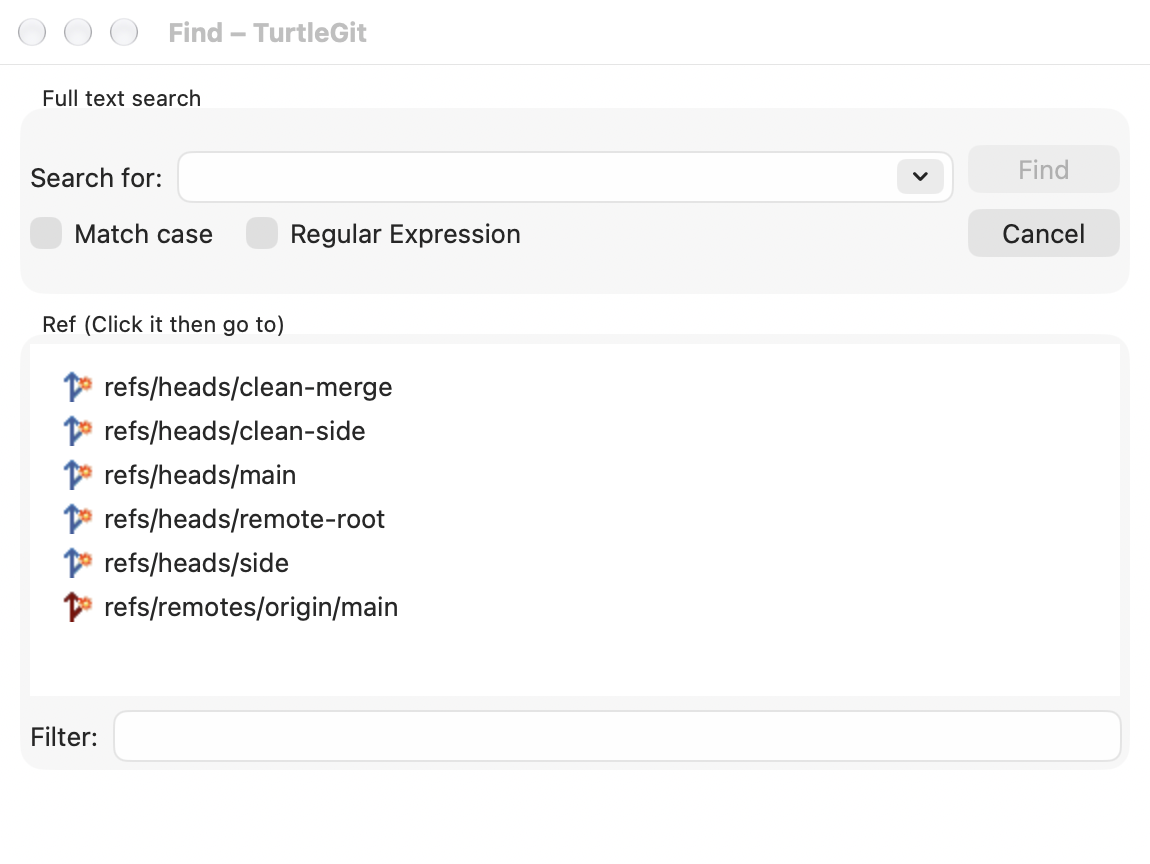
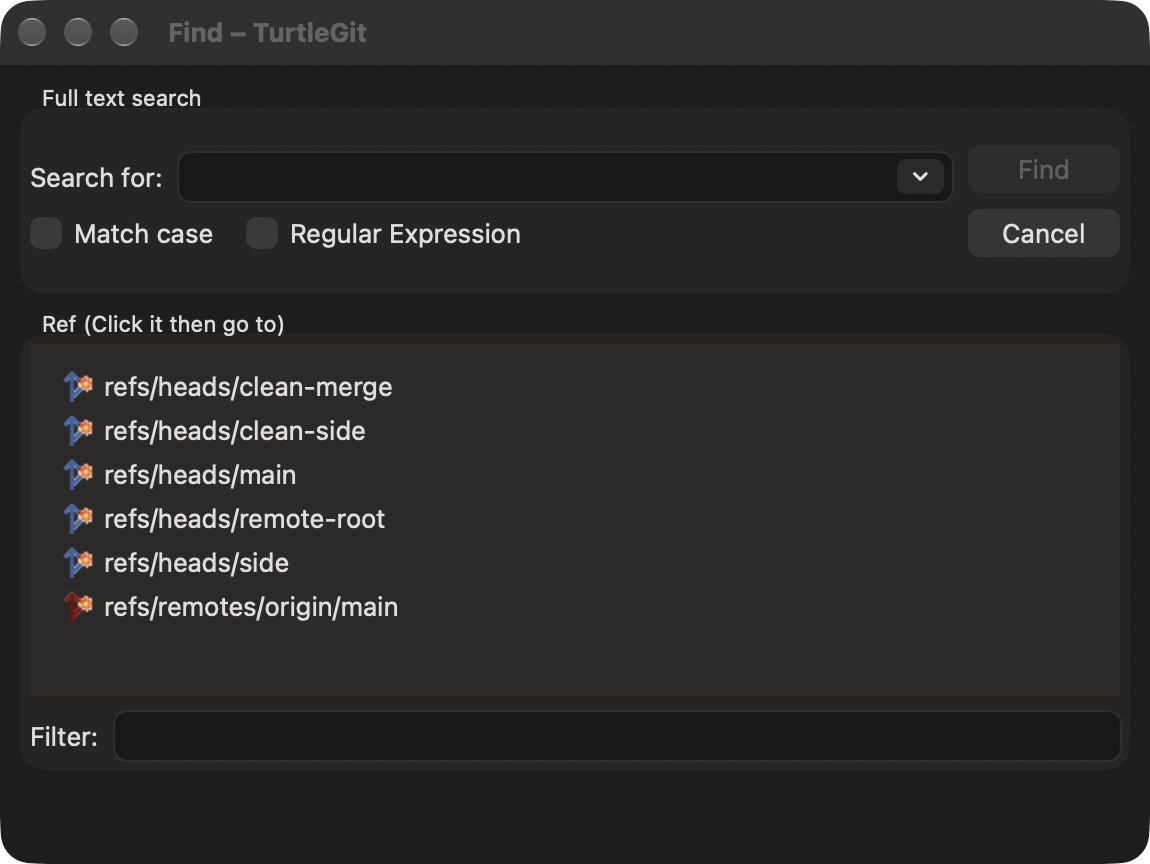
Choose Find from a commit list's context menu, or press Cmd+F with that list focused. Incoming and outgoing lists keep separate Find windows and search positions. Search includes commit text, metadata and changed paths; Match case and Regular Expression refine it. Click a reference to navigate to its commit. Shift+Return highlights a text match without changing the selected rows. If you switch tabs while a Find window is open, its results still belong to its original list. See the light Find capture and dark Find capture.
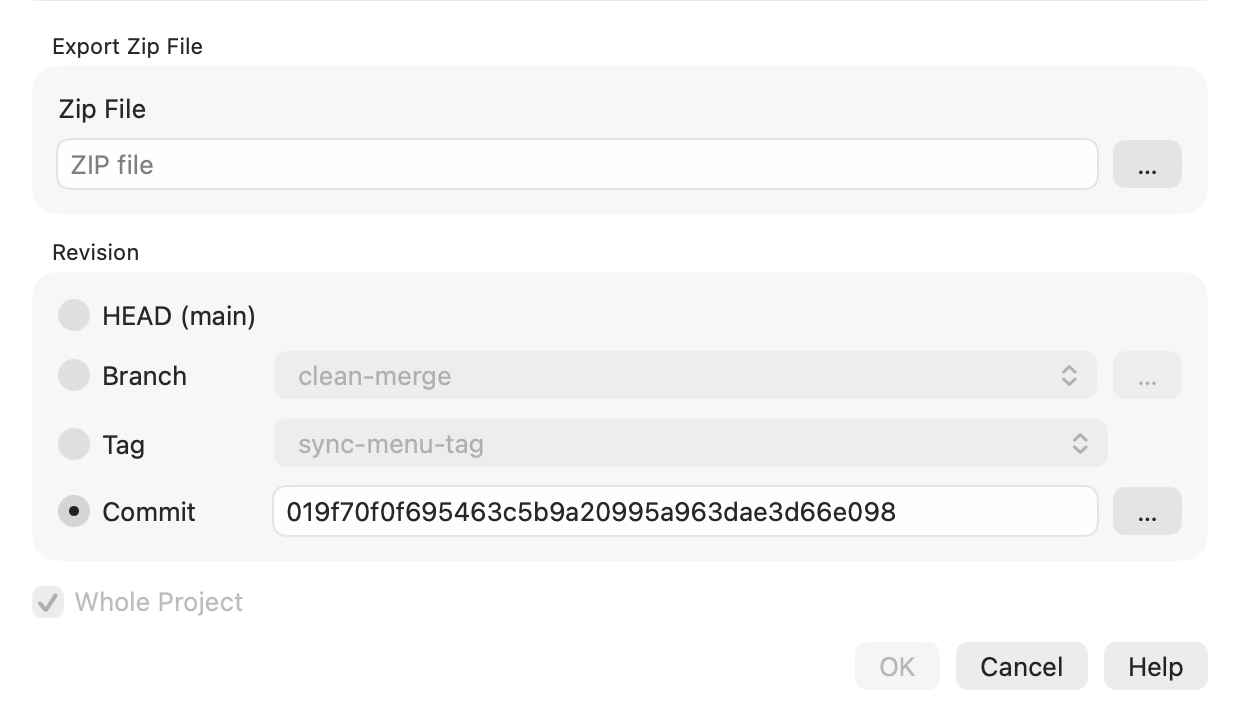
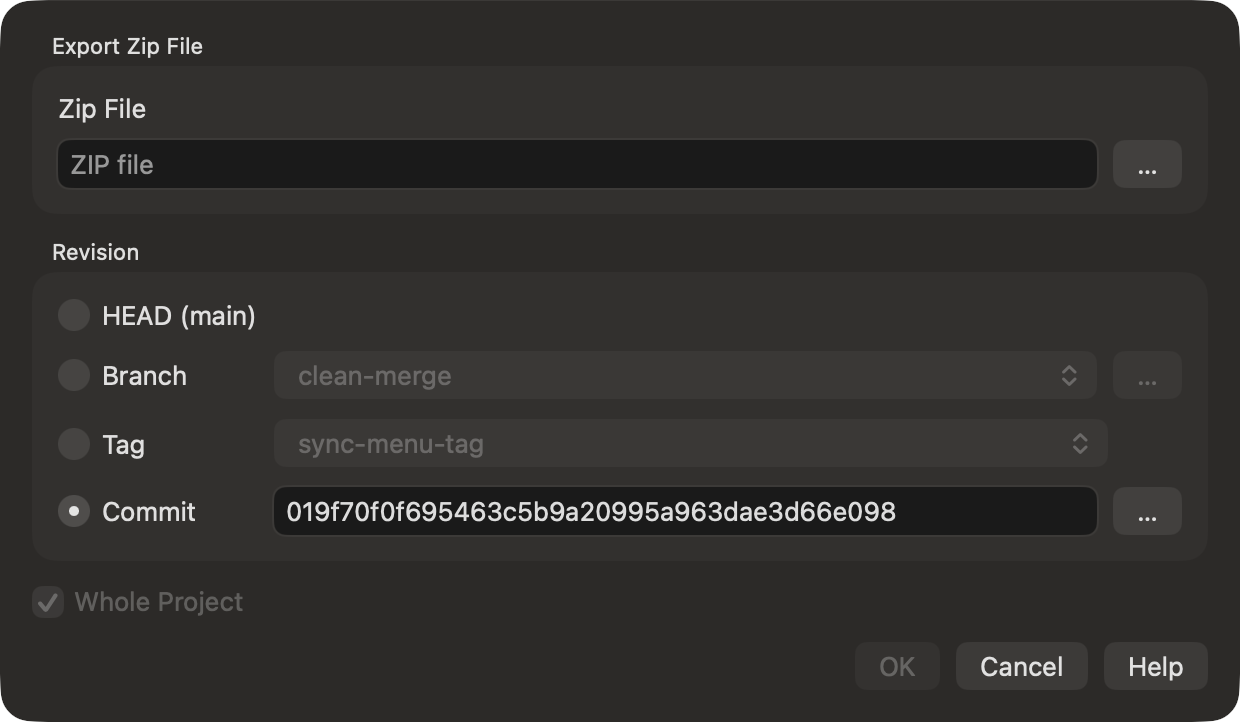
For a single commit, Export this version… opens Export options attached to Sync. Choose the destination ZIP and export the whole project or a directory. When that commit has a tag, the dialog initially selects the first tag. Use the Branch … button to browse references; selecting a tag there switches to Tag. The Commit … button opens Log at the typed revision so you can choose one commit. Cancel keeps the current choice. Close the completed progress result to return to Sync; Cancel dismisses the options. See the light Export sheet and dark Export sheet.
The existing light Sync screenshot and dark Sync screenshot show native windows with incoming and outgoing history. See Synchronization for command details and platform limitations.
Standalone comparison and merging
Choose Tools → Open in TurtleGitMerge… without needing a repository. Use Merging and select Base, Their and My files. Two selected files open a comparison; three open a three-pane merge. You can drop a file onto a path field or use Browse…. Path suggestions follow accessible folders; App Store builds require file/folder authorization for paths outside the app container.
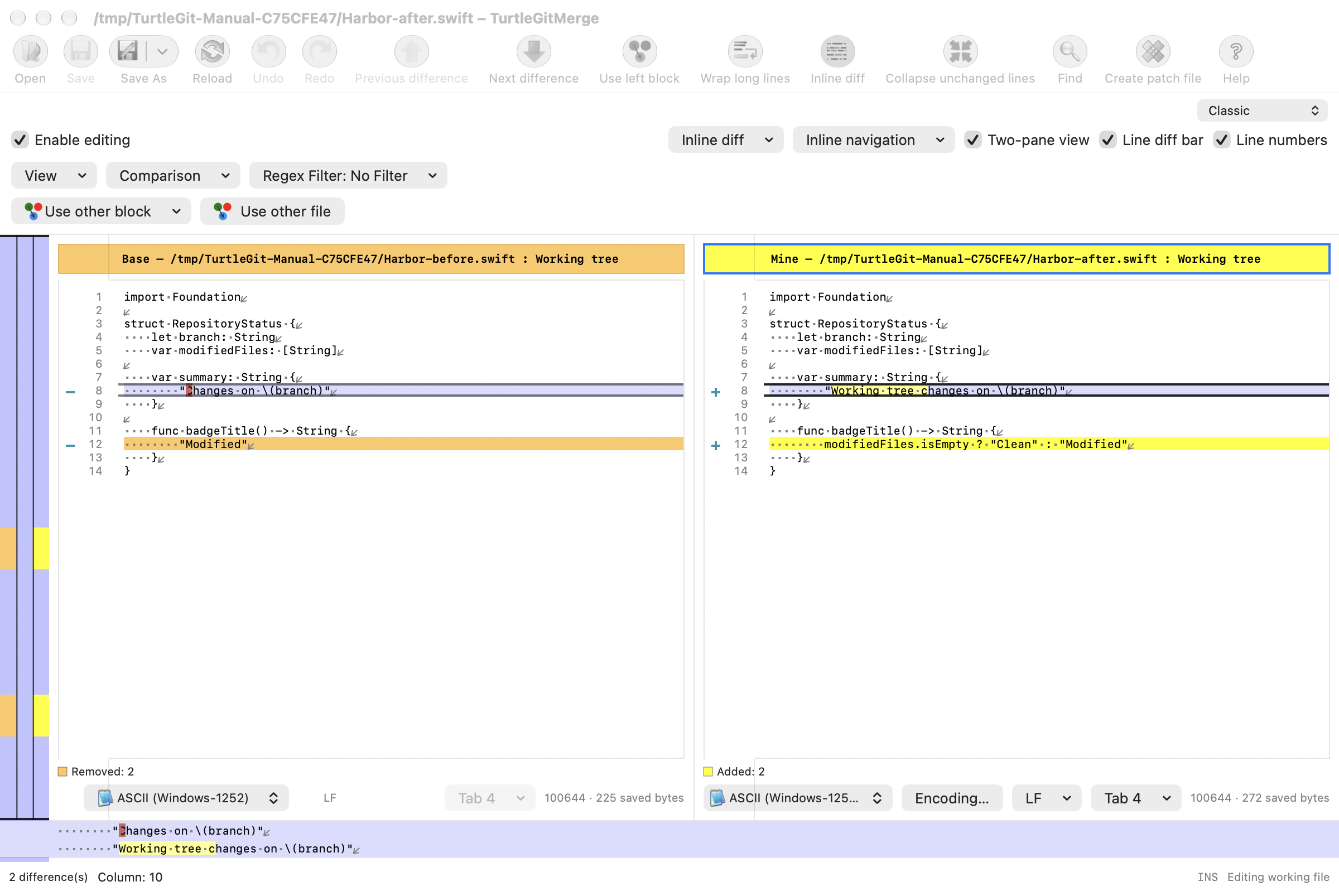
For two-file comparisons, choose Classic or P4Merge-style from the compact dropdown at the upper right. The selected layout is remembered; changing it does not save either file.
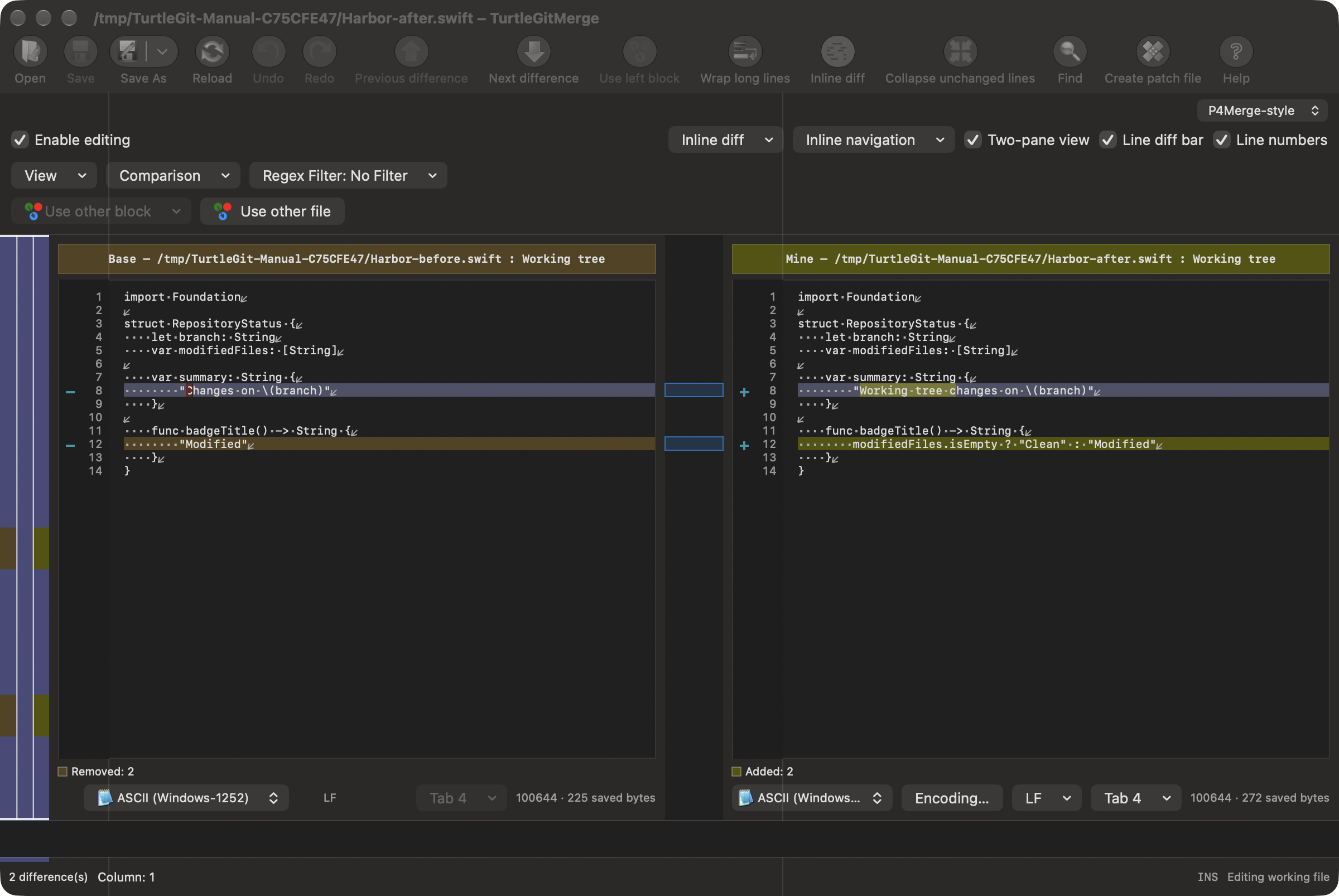
Three-file results start unnamed. Save asks for a destination; later Save uses that file. Save As… chooses another destination, and Cancel keeps the current one. Inputs stay unchanged unless you explicitly select an input file as the output. Shared input paths are supported. If another program changes an input or an already-saved output, reload/review the changes before saving again.
When you return to a text comparison or merge window, TurtleGit checks its local source files. Load changes replaces the current views and discards unsaved edits. Ignore changes and Cancel keep the displayed versions and acknowledge that disk change; another later change can prompt again. Retained source panes are marked separately from the merged result. Saving a retained version does not automatically authorize overwriting newer disk contents: use an independent Save As… copy when the original Save is refused. The separate result/output file is protected by Save checks and is not another activation-watched input.
Choose Apply unified diff for a patch file and target directory, or select Use Unified Diff from clipboard. The checkbox follows clipboard format availability without reading clipboard text until OK. If clipboard contents are cleared while selected, you can uncheck it and choose a patch file. See Merge Open parity for current validation and limitations.
In a text comparison or merge, View → Scroll → Line Up / Line Down moves all displayed panes by one visible line. Line Left / Line Right moves them by one font character cell where horizontal scrolling is available. These commands leave text, caret selections and Undo history unchanged; ordinary caret arrow keys keep their usual behavior. See the viewport navigation record for source mapping and platform differences.
Open a standalone unified diff
Open a patch document in the Unified Diff viewer to read, edit and save its text without opening a repository. The command-line entry also accepts piped diff bytes and an optional window title; see standalone Unified Diff. The viewer has Find and a window-local Light/Dark choice. Saving writes the patch document; applying it to a working tree is a separate action that requires a repository and folder access.
Appearance and folder access
Windows follow the application or system Light/Dark appearance, with separate color palettes for comparison, patch and Blame views. Standalone Unified Diff can use its own appearance choice. Use Settings to customize fonts and colors.
macOS can ask you to select a repository, its external Git metadata, a destination or an input file before allowing access. These permissions are separate from Git's safe-directory trust checks. Review any trust question and its exact repository and configuration path before accepting it. Cancelling a permission or trust request does not grant access. Registration alone does not enable background refresh or scan other folders.
Text encoding and line endings
In an editable comparison or merged-result pane, choose Encoding… beside its format indicators. Choose the output encoding and EOL, then OK. Auto preserves mixed endings and unended final lines. Cancel changes nothing. The chooser edits the draft; use Save or Save As to write it. A format that cannot represent the text without loss is rejected. Go To Line uses the source file's numbered lines, excludes alignment gaps and is unavailable for one-line panes.
If a file's text is displayed with the wrong characters, use that pane's Reload with encoding menu to read its original bytes with another decoder. You can also hold Control while selecting an encoding. This works for read-only historical and merge inputs. It rebuilds the comparison or merge; unsaved edits use the usual Save/Discard/Cancel decision. Cancel retains your draft. Accepted choices stay in effect for subsequent reloads of that document. Reinterpreting an input does not convert the file on disk. If you save before reloading, that save remains written even if the new decoder fails. See input encoding parity.
In a two-file text comparison, enable Line diff bar to see Base above Mine beneath the panes. Move the pointer over a line to inspect its inline changes, spaces, tabs and original ending, even with the pane display options hidden. The bar follows the source font, colors, word mode and horizontal scroll positions. Its visibility is saved; one-file and ordinary three-pane views hide it. See Line Diff Bar parity for remaining acceptance.
Choose Create patch file in a two-file comparison's toolbar or File menu to export a unified diff of the saved inputs. Unsaved pane edits are excluded, as in TortoiseMerge. In Settings → Diff Viewer → Merge Editor → Diffing, set Context lines for patches (-1 for Git's default, 0 for no context, up to 1000). Apply saves the setting; Cancel discards changes. See Create patch parity for scope and remaining acceptance.
In Settings → Diff Viewer → Merge Editor → Colors, choose Light or Dark and use a swatch's dropdown for Automatic or More colors…. Automatic restores that foreground/background channel; Restore Default restores the selected palette. Both palettes remain drafts until Apply. Cancel discards both. The custom picker accepts RGB colors, with opacity excluded. See Merge Colors parity for remaining acceptance.
In a two-file comparison, uncheck Two-pane view for a combined Base–Mine list. Removed lines precede added lines. The combined editor saves Mine and leaves untouched removed lines out of the result. Switching with unsaved edits offers Save/Don’t Save/Cancel. Set the default in Merge Editor → Misc → Use one-pane view as default for 2-file diff. See one-pane parity.
In a combined comparison, Copy includes removed text; Cut/Paste edit Mine. Two-view transfer commands are disabled because the opposite pane is hidden. Mark/Unmark actions belong to the two-pane right view. The combined popup orders clipboard commands before format choices. See one-pane context parity.
Merge Editor → Misc → Default to UTF-8 encoding controls detection for ASCII files when opening or reloading. It defaults off, matching upstream. BOMs and valid non-ASCII UTF-8 retain their formats. Applying it does not recode an open draft. The initial legacy adapter is Windows-1252; see default encoding parity.
Choose View → Wrap long lines in a comparison or merge viewer to wrap text to the pane width. The choice is saved and horizontal scrolling is disabled while wrapped. Corresponding source rows remain vertically aligned; resizing reflows them. File bytes and logical edit/Find/Undo offsets stay unchanged. See wrapping parity for remaining acceptance.
Refreshing the Working Tree
Use Refresh, Command-R or F5 in the Working Tree window. The progress label shows the current operation; Cancel stops its owned work. A failed or cancelled refresh retains the last complete table. Closing while work is running requests cancellation and keeps the window until it settles. Completed staging or index changes are retained; refresh to inspect them after cancellation.
Show unversioned files and Show all staged files are remembered. Show Whole Project is remembered per repository for file/folder-scoped windows. Ignored and locally ignored flags remain choices for the current window. Successful refresh preserves selected paths that are still visible.
Working Tree’s file menu offers history, old-name history for renames, and Blame for existing tracked files, including a missing file’s committed history. Select two files for Compare two files. Open, Open With… and the configured alternative editor use working contents. Export… preserves the relative paths and current working contents in the chosen folder.
Context Commit… opens Commit for the selected files. With an unversioned or ignored focused row, Add opens native progress; hold Shift on a file for Add as Executable (+x) or Add as Symlink. Those choices change the staged Git mode, leaving the disk file intact. In a mixed selection, the focused row controls which source commands appear; actions retain the selected targets.
Context Delete asks before moving paths to Trash and removes any corresponding index entries. Hold Shift for permanent deletion. The Delete key applies when the focus mark has an unversioned or ignored working copy; context Delete also applies to missing tracked rows. Confirming a mixed selection acts on the entire selected set.
Working Tree displays status categories and saved changelists as group headings. Use Move to changelist to name or reorganize selected files, or Remove from changelist to return them to their status category. ignore-on-commit keeps files out of automatic checked-file selection in Commit; assigning it in Working Tree does not change staging. Keep changelists shares Commit’s preference for retaining membership after a successful commit. Clipboard copies follow the visible group order and omit headings.
For a submodule row, Show log shows changes to its gitlink in the parent repository; Show submodule log opens the child checkout’s current history. The latter is available in Commit and Working Tree and requires an initialized child checkout. Submodule Diff’s From/To Log buttons instead open history at the respective displayed child revision. Its Cancel button stops an active refresh while retaining the prior From/To information.
Log shows a read count while Git loads revisions, then displays complete row batches while later notes and metadata are still being read. History actions remain gated until the load finishes. Cancelling a replacement read restores the previous stable list and graph; an interrupted prefix is not treated as a completed history.
Advanced’s NoSortLocalBranchesFirst changes branch ordering on the next reference load. LogTooManyItemsThreshold controls when Log suppresses an oversized changed-file list. NumDiffWarning controls the warning before opening multiple file viewers from Log, Commit, Working Tree, Add and Changed Files. Log’s parent groups count as one selected-file action. The minimum threshold is three, matching TortoiseGit. Closing the initiating window cancels pending confirmation and Git preparation. Aggregated unified patches remain a single viewer; Changed Files’ per-file unified command uses the many-viewer warning.
The comparison and conflict editors offer Inline diff and Inline diff word-wise. Inline visibility is remembered; word mode applies to the current window. In two-pane view, Next/Previous inline difference move between change boundaries on the current line with Control-Option-Right/Left. They do not wrap. Three-pane merge sources show inline colors while their result pane remains editable; inline navigation is disabled in that layout, matching TortoiseGit.
Choosing colors
In Settings, Colors 1 controls file status colors, Colors 2 reference labels and filter matches, and Colors 3 the graph lanes. Each color swatch has an Automatic choice for its default and More colors… for the native picker. Blame, Unified Diff and Merge Colors also offer separate Light/Dark palettes. The palette being edited is independent of the window appearance. Changes stay in the Settings draft until Apply; Cancel restores saved choices.
Settings keeps its page heading and OK / Cancel / Apply / Help visible when you resize the window. Scroll the page to reach lower controls; narrower pages can also scroll horizontally. Returning to a visited page restores its scroll position. Hover a shortened sidebar caption for its complete name. A validation error selects its page and expands the required sidebar parents.
From Log, Merge uses the reference label you clicked, otherwise the selected commit’s first reference. Rebase prefers a local branch on that commit. If the chosen reference has moved, refresh the Log before trying again. Preparation can be cancelled by closing Log; a cancelled or retired window does not open late Merge/Rebase options.