 TurtleGit for Mac
Revision Graph
Revision Graph shows the repository's branch and tag topology in a separate native macOS window. Open Revision Graph from the repository's action list. The Finder extension also has a Revision Graph command when its integration is available; signed activation and complete Finder acceptance remain pending.
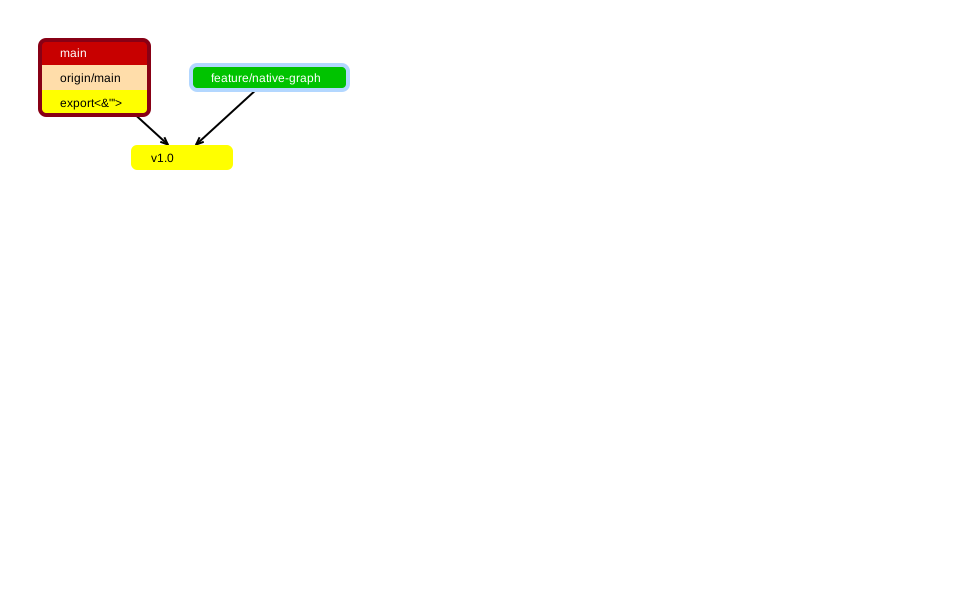
Each node contains colored reference rows. Current branches, other local
branches, remote branches and tags retain distinct TortoiseGit color roles.
For a submodule, pink rows identify the recorded parent-index revision
(super-project-pointer). During a parent merge conflict, the two sides are
super-project-head and super-project-merge-head. During a parent rebase they
become super-project-rebase-head and super-project-head. The ancestor index
entry does not get a pointer row. These reads do not stage or resolve the parent
conflict. The Advanced setting LogShowSuperProjectSubmodulePointer
(default on) controls these rows when a new graph window opens.
Nodes without references display an abbreviated commit hash. Hover over a node for its full hash, author, author date and message.
Click a node to select it; clicking the first selected node again clears the selection. Command-click or Control-click another node to select a second revision, or click a selected node with that modifier to remove it. The first selection has an I marker and becomes the Base when two nodes are selected; the second has a red II marker. Right-click a node for Log, repository browsing, comparison and reference commands. A single selection offers Switch actions for other local branches; several branches form a submenu. If there are no other local branches, remote branches and tags can open Switch/Checkout. Current-branch references are excluded from deletion. Delete offers each eligible reference and, for multiple references, All. All confirms each reference separately; Abort stops the sequence. Return chooses Abort in the confirmation. Remote branches offer remote-and-local or local-only deletion; a stash offers all-stash or single-stash choices.
Copy ref names uses complete reference names, including upstream's ^{}
notation for annotated tags; an unlabeled node copies its full hash. Show Log
uses the selected node's hash, or the first-to-second revision range when two
nodes are selected. See the parity record for remaining physical and signed
interaction checks.
Use the toolbar or View menu to zoom, return to 100%, fit width or height, or fit the whole graph. The toolbar uses the original TortoiseGit zoom, Filter and Overview icons. The toolbar percentage box offers 5%, 10%, 20%, 40%, 50%, 75%, 100% and 200%. Choose a preset or type a positive percentage and press Return; custom percentages may exceed 200%. Invalid values restore the current percentage. Button, wheel and fit changes update the box. Command/Control-wheel also zooms. Zoom changes preserve the viewed graph location by rescaling its scroll position, bounded by the new canvas size. With the canvas focused, arrows scroll twenty points and Page Up/Down scroll half a viewport. Drag blank space to pan the canvas; Escape cancels an active pan before closing the graph. Show Overview displays a miniature graph in the lower right; its size follows the graph and viewport, and the shaded rectangle shows the visible area. Click or drag within it to navigate. The overview is suppressed above 10,000 displayed nodes. Refresh or F5 reads the repository again.
Find in the toolbar, View → Find… or Command-F opens a modeless Find window. Search controls remain disabled while its initial reference list loads; Cancel can close the window during this read. Full text search offers a history box, Match case and Regular Expression. It searches commit subjects/bodies, author and committer names/emails, full hashes and full reference names using the same query matcher as Log. Press Return in the search field or click Find. Find advances after the previous result and wraps once; a status message reports a wrap or no further match. Use Shift-Return, or hold Shift when finding, to navigate without replacing the graph selection.
The lower reference list shows complete names and the original tag/local/remote type icons. Click a reference to go to its peeled commit, including annotated tags. Its case-sensitive Filter updates after a one-second pause. References outside the currently displayed graph do not change selection. Search history and the two matching options are saved when Find is pressed; closing the window cancels its pending work. The graph can remain interactive while Find is open; loading or owned sheets disable search. Closing the graph closes its Find window. A failed reference read or resolution opens an owned error sheet; acknowledge it with OK before continuing or closing the graph.
View → Filter… opens a revision range sheet. From excludes history reachable from the entered revision; To restricts the included history. Both fields accept whitespace-separated revisions. RefBrowser opens the native reference chooser. Select one reference for its complete name or several for a space-separated list, matching TortoiseGit. Cancel preserves the field. Only Current Branch and Only Local Branches are mutually exclusive: checking one disables the other, clears To, and disables To and its browser. Uncheck the active scope to re-enable the other controls. Cancel discards the sheet's changes. Reset filter clears the range and branch scopes and immediately refreshes the graph.
The Filter command and toolbar button show a checkmark while an accepted From, To, current-branch or local-branches filter is active. Editing the open sheet does not change that mark until you accept; Cancel retains the applied filter. File and View menus group related commands and use the original command icons. The application menu-icon preference controls those icons.
Hover over a graph node to see its full revision, author name and email, local date and time to the minute, subject and message body. Long tooltips are bounded; AppKit wraps and positions them within the screen. Owned sheets and active reads suppress tooltips from the previous graph.
Show all tags, Show branchings and merges, and Arrows point towards merges are separate View commands. These affect the graph's reduction or arrow direction, independently of the range filter. These three choices and overview visibility are remembered across graph windows and app launches. Defaults match TortoiseGit: all tags on, overview/branchings/merge-directed arrows off. Zoom, selection and revision filters start fresh when a new graph window opens.
File → Save graph as… opens the native save panel with Pictures,
Graphs and All Files filters. Pictures adds .svg when the name has no
extension; Graphs adds .gv. An existing extension remains unchanged when
switching filters. The filename chooses the format: SVG, Graphviz (.gv or
.dot), WMF, EMF, PNG, JPEG, BMP, GIF or PDF. With All Files, an extensionless name becomes
JPEG; an unknown extension also appends .jpg (for example, history.custom.jpg).
The panel confirms the final filename before granting access or replacing a file.
Cancel leaves the destination unchanged. SVG, WMF, EMF and PDF export
at 100% and include at least the graph and viewport extent; raster images export
the full graph at the current zoom. Graphviz stores topology and colored
reference rows for an external Graphviz renderer. As in TortoiseGit, .wmf
contains an enhanced metafile; .emf is an explicit alias. SVG and metafile labels
use native shaped glyph outlines, with a small bitmap only for labels requiring
color or bitmap fonts. These labels retain their appearance rather than editable
text. PDF retains text. Very large raster exports report an error; reduce the
zoom or select a vector format. This is a partial port, not a full parity claim.
The parity record documents source mappings, verification and remaining work. The upstream manual is a reference for the Windows application; platform-specific details can differ.
Example exports from a disposable test repository: SVG and Graphviz. The fixture includes a tag with XML metacharacters to verify that reference text remains readable.
The viewport navigation record describes source scrolling, gesture ownership and remaining physical/signed acceptance.