 TurtleGit for Mac
Repository folder access
A linked worktree or submodule can keep Git metadata outside its working folder. A shared clone can also read objects from another repository. In an App Store build, choosing the working folder alone does not grant access to those locations.
When opening such a repository, TurtleGit shows Allow repository folder access with the reason and exact folder needed. Select that folder, or a parent folder containing it, then choose Allow Access. A narrow worktree metadata grant can reveal a second request for its common Git directory; granting the common directory covers both. External object-store chains can require additional choices.
Cancel keeps the previous workspace. Choosing an unrelated folder reports an error and also keeps the previous workspace. Closing the initiating window cancels its picker; a late result cannot save access or open another repository.
Successful opening remembers the extra folder grants with that repository in the app's private repository archive. Reopening renews available stale bookmarks and reuses valid grants. An unrelated expired grant does not prevent opening: the workspace asks only for currently required folders that remain uncovered. The Finder service retains its separate strict authorization policy.
Open repository windows and their child tools keep these permissions active until they finish. Closing the workspace does not drop access from an already-open Log or other child window. Primary working-folder containment remains separate from metadata access, so a metadata choice does not change which repository was opened. Authorized metadata directories can participate in file monitoring, and an already authorized template or approved client hook can use that folder permission.
Workspace grants live with the repository in Recents. Manage them through File → Open Recent → Manage Repository Access… as described below. Forgetting a saved repository discards its saved grants; opening it again asks for the needed folders. Active operations retain permissions they already acquired until their windows finish.
Background Finder watches have a separate archive and authorization lifecycle. Their grants are managed under Settings → Icon Overlays → Watched Repositories → Additional folder access. Opening a workspace does not itself enable that service or copy its new grants into the watch archive.
The current implementation covers Git files, common worktree directories, bare
repositories, symlinked metadata and recursive objects/info/alternates, including
quoted paths. It rejects malformed path metadata and bounds dependency traversal.
Unsupported non-UTF-8 filesystem paths remain a separate native policy limitation.
Recorded Core/native checks use private repositories and an injected bookmark provider. They do not establish signed sandbox inheritance, physical powerbox behavior, network filesystem behavior or complete App Store acceptance. Local clone-source and SSH-key grants remain separate workflows.
Manage saved workspace access
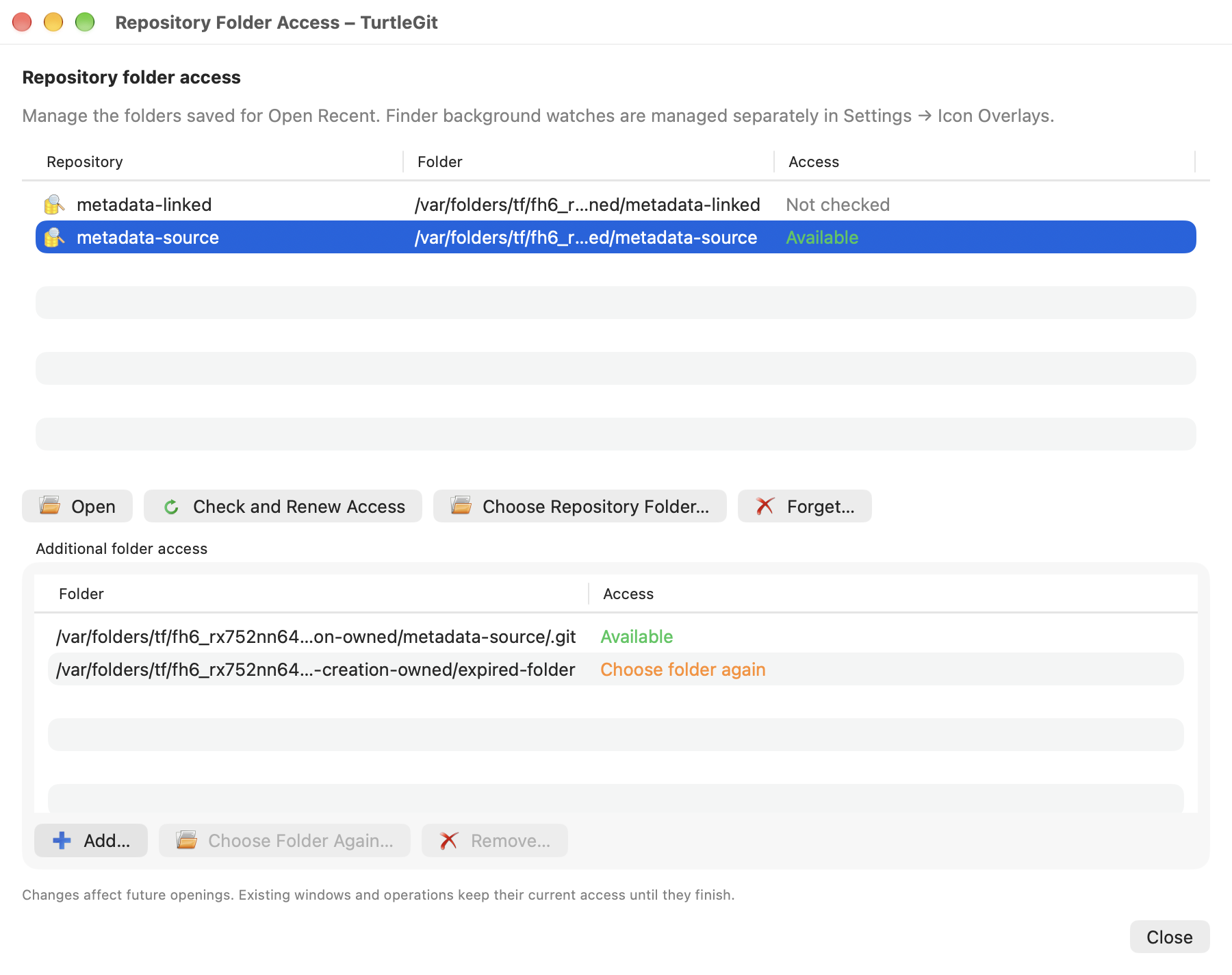
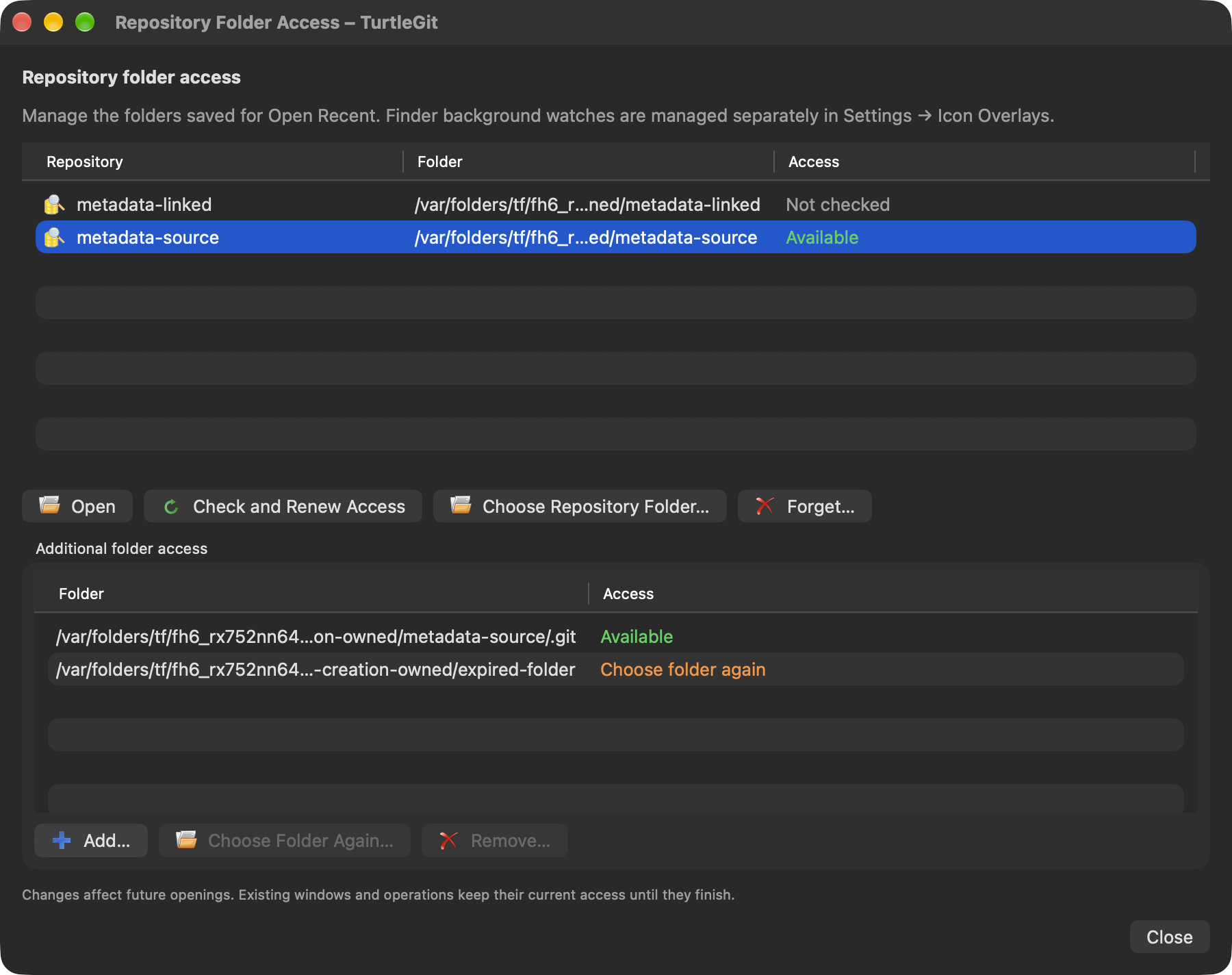
Use File → Open Recent → Manage Repository Access… to open the native repository and additional-folder lists. The command is available even when Open Recent is empty. Select a repository to see its saved metadata/object folders.
Check and Renew Access resolves each bookmark independently, renews stale records and shows Available or Choose folder again. It does not open a repository, change the recent order or retain these temporary checking permissions.
Choose Repository Folder… renews the working-folder permission, including a repository that has moved. Choose its root folder. The existing saved identity and extra grants are retained; a non-repository folder or another already-saved repository is rejected. Opening subsequently performs Git discovery and asks for any uncovered metadata dependencies.
Use Add… to grant an extra metadata/object folder, Choose Folder Again… to renew or replace a selected extra grant, and Remove… to discard it. Forget… removes the selected repository and its extra grants from Open Recent. Both removal questions default to Cancel. These operations affect future openings; already-open windows and operations retain their acquired permissions until they finish. Repository files are left on disk.
Pickers and questions belong to the access window. Their pending choices prevent another action or normal close/Quit; forced owner retirement cancels the sheet and rejects late responses. Workspace operations also block saved-access edits. The access manager changes only the workspace archive; background Finder watches continue to use their separate Settings page.
See manager implementation evidence and the light / dark native window captures.
Clean and recursive submodules
Clean reuses the opening workspace's retained metadata permissions. If a linked worktree, shared object store or initialized recursive submodule needs another folder, its progress window asks for the exact dependency before querying that checkout. Select the requested folder or a containing parent. Cancel stops the attempt; choosing an unrelated folder reports failure. Retry prepares a fresh plan and reuses permissions already accepted in that progress window.
These extra Clean permissions are temporary for the progress window and its workers. To remember access across openings, use Manage Repository Access. Recursive cleanup revalidates all checkouts before its first removal, including permission preparation. Closing an active operation requests cancellation; any filesystem work already completed remains completed.